Protect confidential files in OneDrive
Problem: Grade lists, assessments and support plans should be available on every device – but not stored in plain text at Microsoft, Google or any other cloud provider.
Solution: a personal vault in a OneDrive folder. Krywerk encrypts every file before OneDrive uploads it and shows you the vault as a normal drive.
Result: OneDrive only syncs encrypted files with unreadable names. You keep working with Word, Excel and all other programs as usual.
Prerequisites
- Krywerk is installed (Installation).
- OneDrive (or another sync folder) is set up on the computer.
Steps
- In Krywerk, choose “+ Add” › “Personal vault or existing folder …”.
- Leave the format at “Modern (recommended)”.
- Under “Folder for the vault”, choose a new, empty folder inside your OneDrive folder, e.g.
OneDrive – School\Confidential. - Enter a password and repeat it. It cannot be recovered – store it in a password manager.
- Optionally tick “Remember password” and “Mount automatically”: the drive is then available right after every sign-in to the computer.
- “Save” – Krywerk creates the vault and mounts it as a drive (Windows: its own drive letter, macOS and Linux:
under
~/Krywerk). - Copy files to the new drive or save them there directly.
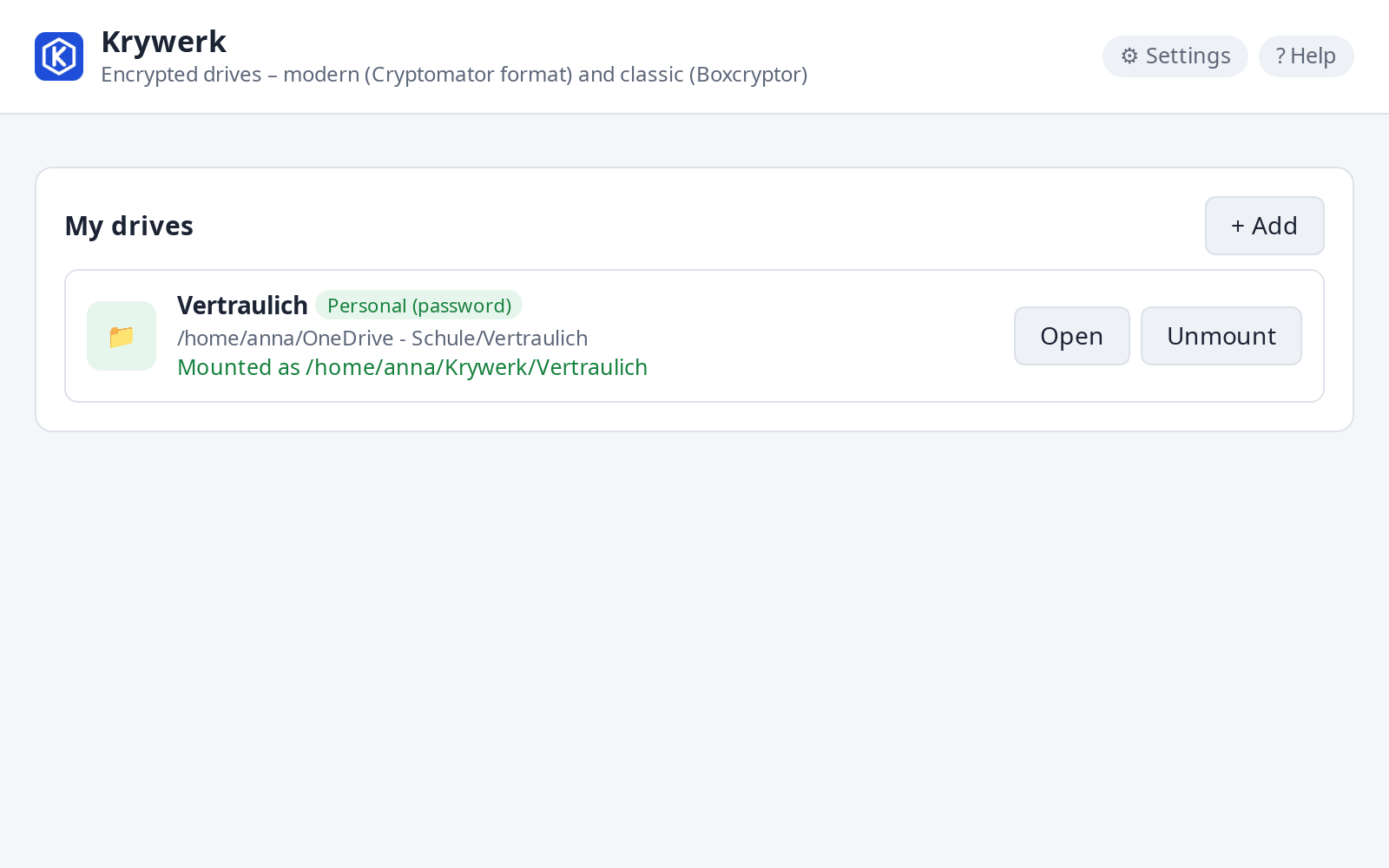
What it looks like
| In the drive | In the OneDrive folder |
|---|---|
Grade list 10b.xlsx |
d/QJ/7LTF…/Qz4fKw0mT2hL….c9r |
Support plan Jonas.pdf |
d/QJ/7LTF…/Hs7Lq2Vn0bXk….c9r |
Never open or rename the files in the OneDrive folder directly – only use the drive.
On other devices
- Second computer: install Krywerk there as well, choose “+ Add” and select the existing vault folder in OneDrive; enter the password.
- Smartphone: the Cryptomator app (Android, iOS) opens the same vault, because Krywerk uses the open Cryptomator format.