Team folders without a shared password
Problem: A shared vault with one password for everyone gets passed around, is never changed – and anyone who leaves keeps it.
Solution: a team folder. Each person signs in with their own organization account (e.g. Microsoft 365) and receives the key encrypted for themselves. Managers verify the identity of new members and grant access person by person.
Result: no more shared password. Access is tied to the account and can be revoked individually.
Prerequisites
- The organization runs Krywerk Server (set it up); IT knows the address.
- A shared storage location for the team, e.g. a shared OneDrive or SharePoint folder.
- Anyone allowed to create team folders has the
create-vaultsrole.
Once per person: connect the organization account
- Settings › Organization account › “Connect organization account”, enter the key server address and click “Confirm key server”.
- “Sign in now” – the browser opens your organization’s sign-in page.
- The first time, Krywerk shows the unlock code. Keep it safe: it unlocks every additional device.
Create a team folder (manager)
- “+ Add” › “Create and share team folder …”.
- Choose a location in the shared folder and enter a name, e.g. Mathematics department.
- Search for people or groups and click “Add”; add deputies with “Add as manager”.
- “Create team folder” – Krywerk shows the recovery key once: print it or choose “Save as file …” and keep it separate from the computer.
Grant access and verify identity
New members appear under “Manage” › “Waiting for access”. Before you release the key, make sure it really belongs to the intended person:
- The person opens Settings › Organization account › “Show fingerprint” in their app and reads the first characters out to you – by phone or in person, not by email.
- On your side: click “Verify identity …” next to their name, type in the characters you were read, and confirm. “not verified ⚠” changes to “verified ✓”.
- Tick the person and click “Grant access”.
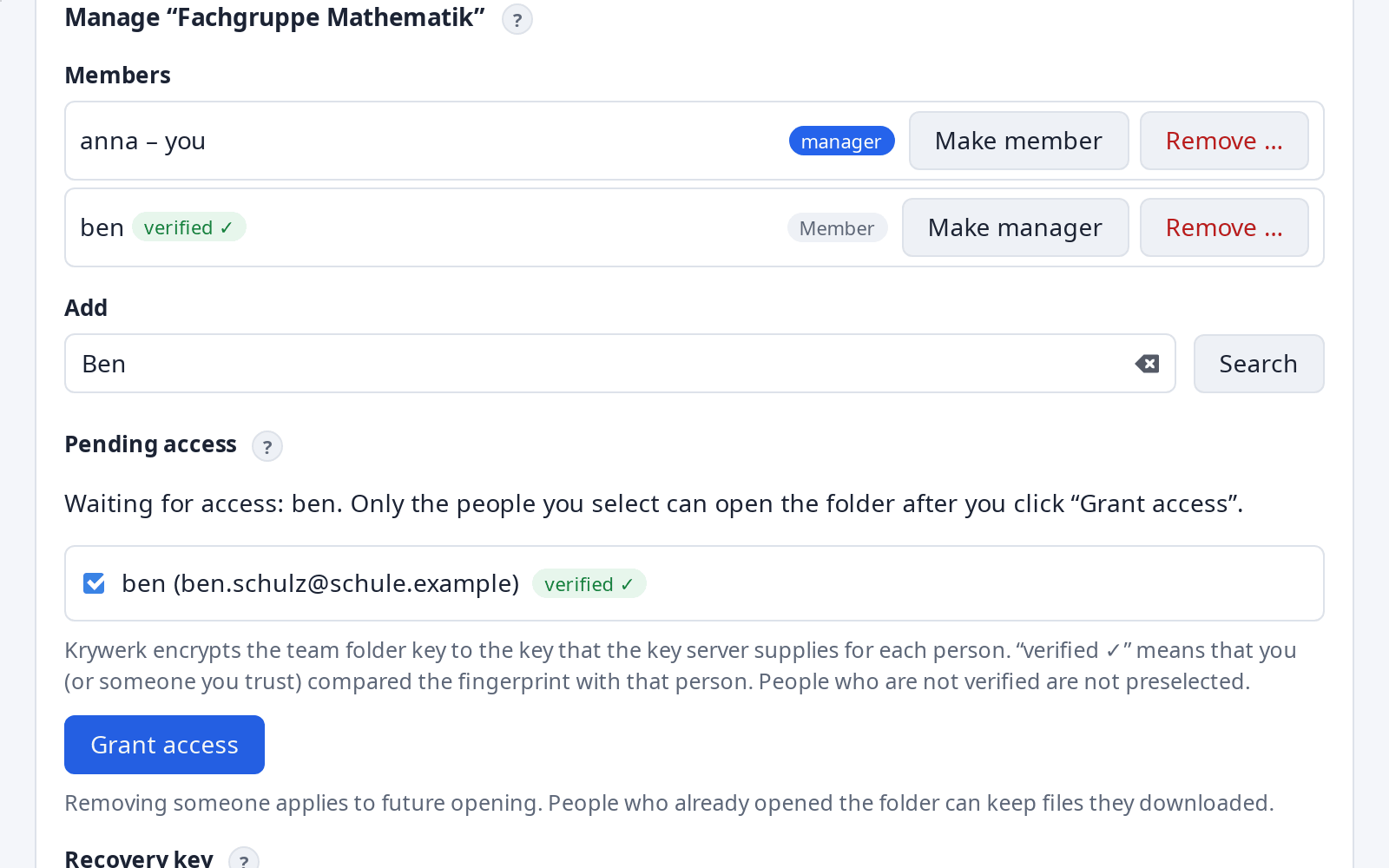
Verified people stay verified – for other team folders as well. If their keys change (new account), Krywerk shows them as not verified again.
Open a team folder (members)
- The team folder appears under “My drives” as soon as access has been granted.
- If it is not yet available on this device (e.g. the OneDrive shortcut is missing): “Find folder …”.
- “Open” – no password needed.